Connected apps
Give bots secure, user-authorized tools for Gmail, GitHub, Slack, Notion, and hundreds more.
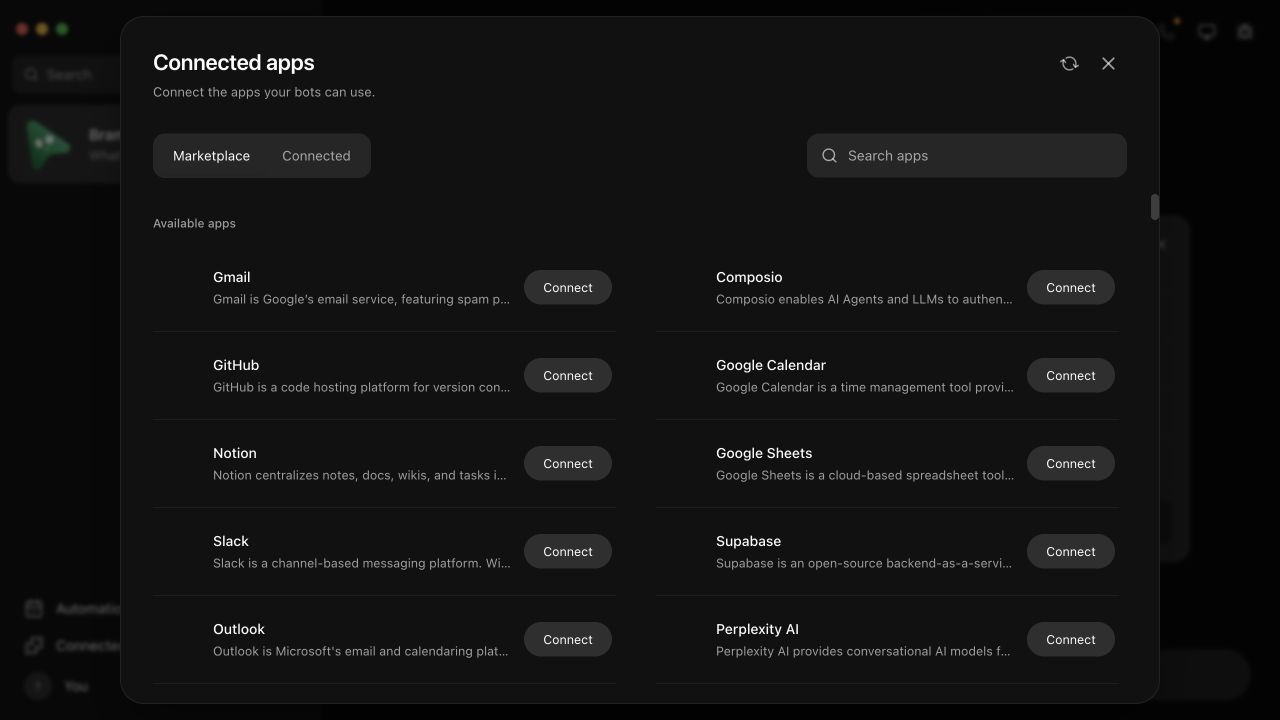
Open Apps from the sidebar, choose a service, and complete its authorization in your normal browser. Seira turns the resulting connection into tools that supported agent engines can use.
Desktop app
The desktop app connects apps through Seira's connected-apps service. You need no Composio account and no key.
- Open Apps from the sidebar and find Gmail, GitHub, Slack, Notion, or another app.
- Select Connect.
- Finish the sign-in in the browser window that opens.
- Return to Seira and ask a bot to use the app.
To connect a second account of the same app, select Add account, give it a label such as work or personal, and finish that sign-in too.
The sign-in tokens of each app stay with Composio. Seira never writes them into bot prompts.
Apps that need your own OAuth app, such as Xero and Buffer, do not show in the list. To connect them, use your own Composio project, as in Apps that need your own OAuth app.
Use your own Composio project
A saved Composio project key takes priority over Seira's service. Seira then sends nothing to the service.
- Create a free account at composio.dev.
- Open the project's API Keys page.
- Create a key. It starts with
ak_. - In Seira, open Settings → AI → Other services.
- Under Apps and tools, paste the key into Composio project key and save it.
Seira keeps the key in your operating system's secure storage.
Seira Cloud
A Cloud needs the owner's Composio project key. Save it in Settings → AI → Other services, under Apps and tools → Composio project key.
A Cloud uses a connected-apps service instead only when its environment names one with OMB_COMPOSIO_BROKER_URL.
Source builds and your own service
A source build uses your own Composio project and COMPOSIO_API_KEY. See Self-hosted Composio.
To run your own connected-apps service, set OMB_COMPOSIO_BROKER_URL to its address. Without that variable, the source build uses no service. The packaged desktop app and a self-hosted server installed from npm or Docker use Seira's service at https://apps.seira.bot, and OMB_COMPOSIO_BROKER_URL names another one. A self-hosted server registers with the service by itself, with no token to make by hand. Set OMB_COMPOSIO_BROKER=off to turn the service off. A saved project key always takes priority over a service, and then nothing is sent to it.
Connect X (Twitter)
To let bots search and read X, you do not need an X account or a Composio connection. Open Apps and find the X (Twitter) card:
- On a paid Seira Cloud plan it says Included with your plan, with this month's use ("312 of 5,000 X calls this month"). There is nothing to set up. The allowance is 500 calls a month on Starter, 1,500 on Personal, 5,000 on Pro and 15,000 on Max, and it resets on the first of each month. Once it is used up, the card and your bots say so and when it resets.
- Everyone else pastes their own treg key on the card (it is the same key as in Settings → AI → Other services). The card checks it with treg and shows your balance or the exact problem. Test checks it again, and Remove key takes it away. Calls are billed to your treg balance, with no limits from Seira.
- With both, your own key is used first and the card says so. Remove it and your bots go back to the plan's included calls.
Every bot then gets Research (treg): read-only tools to search posts, read an account's posts, read a post with its replies and look up a profile, plus research tools that find and call treg's catalog for companies, people, funding, news and more. With neither a key nor a plan, no bot is shown these tools. Turn them off for one bot in its settings under Access. A routine on that bot can check X on a schedule and report only new posts. On a Cloud, your key stays with the Cloud's own settings: bots call X through Seira and never see the key.
The steps below are only needed to post to X through Composio. Composio does not provide managed credentials for its twitter toolkit. To connect an X account:
- Create an app in the X Developer Portal.
- Create a
twitterauth config in your Composio project using that app's credentials. - Save the project's key in Settings → AI → Other services, under Apps and tools → Composio project key.
- Return to Apps and connect X (Twitter).
Older Seira tasks that refer to the connector as x continue to work; Seira translates that alias to Composio's twitter toolkit automatically.
Apps that need your own OAuth app
Some apps, such as Xero and Buffer, have no sign-in that Composio provides, so they connect only with your own OAuth app:
- In your Composio project, create an auth config for the app (Auth Configs → Create) with your OAuth app's client ID and secret, and keep it enabled.
- Save the project's key in Settings → AI → Other services, under Apps and tools → Composio project key.
- Connect the app from Apps, or let a bot ask for it in chat.
Seira finds the auth config by itself, switches on what Composio needs before it uses it ("enabled for Tool Router", which a config you made yourself can have off), and tells the bot which config it used. If you have several for one app, it uses the most recently created. A connection you made in the Composio dashboard itself is not visible to Seira, so connect the app once from Seira.
A connected-apps service you name with OMB_COMPOSIO_BROKER_URL uses its own Composio project, which cannot use your OAuth app. Use your own project key for these apps.
Multiple accounts
Connect more than one account for the same toolkit and give each a clear alias such as work, personal, or client-acme. When several accounts could perform an action, Seira requires explicit selection instead of silently replacing the first connection.
Limit which tools a bot may use
Connecting a service makes its tools available to the workspace; it does not hand every bot every tool. Open a bot's settings on the desktop and, under Connected apps, choose per service whether that bot gets all tools, an exact list of tools, or no tools.
By default every bot keeps all tools on the apps it can see — nothing changes when you upgrade or connect a new app until you assign a grant. Once a bot has any grant, services missing from its list grant it nothing. Imported bots and shareable packages always land with no grants.
Phones show each bot's grants read-only in its profile under App tools. Editing happens on the computer; a paired phone can never change grants.
Disconnecting
Disconnecting an account revokes the upstream grant. It does not only hide the account in the local UI. Other accounts for the same toolkit remain connected.