Your own VPS (BYO)
Use a Docker desktop on your Linux server as a bot’s computer, with setup steps and the 0.1.151 and 0.1.152 selector workaround.
Use this guide when Seira already runs on your computer and you want a bot to control a desktop container on a server you own. The agent and its Google, Claude or other engine sign-in stay on the computer running Seira; Docker commands and the managed desktop container run on the VPS over SSH.
To move the whole Seira server, including its agent processes and chats, to a VPS instead, follow Deploy on a VPS. Pairing a phone or adding a remote Seira server does not select this computer backend.
Prepare the connection
You need the Docker client on the computer running Seira, a Docker daemon on
an x86_64 Linux VPS, and an SSH user that can run Docker without sudo.
Podman and a Windows Docker host do not replace this VPS backend.
-
Add an alias such as
my-vpsto that computer’s~/.ssh/config. -
Connect manually once to verify the host key, then check Docker over SSH:
ssh my-vps true docker -H ssh://my-vps info -
In App Settings → API keys, enter that alias for the self-hosted VPS. Use the alias name, not a password, private key, URL or SSH command.
Docker access is root-equivalent on that server. Use a dedicated VPS, keep its inbound firewall limited to SSH, and verify the host key yourself. Seira never auto-accepts it. See the detailed SSH setup and security notes.
A computer on your Tailscale network
The server can be any x86_64 Linux machine with Docker that you reach over SSH,
including a home server on your Tailscale network. Install Docker and Tailscale
on it, then point the alias's HostName at its Tailscale name:
Host home-box
  HostName home-box.your-tailnet.ts.net
  User deploy
Check ssh home-box true and docker -H ssh://home-box info, then enter
home-box in App Settings → API keys. The bot gets its own desktop
container there, not that machine's own screen, and the same Docker trust rules
apply. Tailscale does not close ports that are already open, so firewall the machine to accept SSH and Docker only from the tailnet.
Select it for a bot
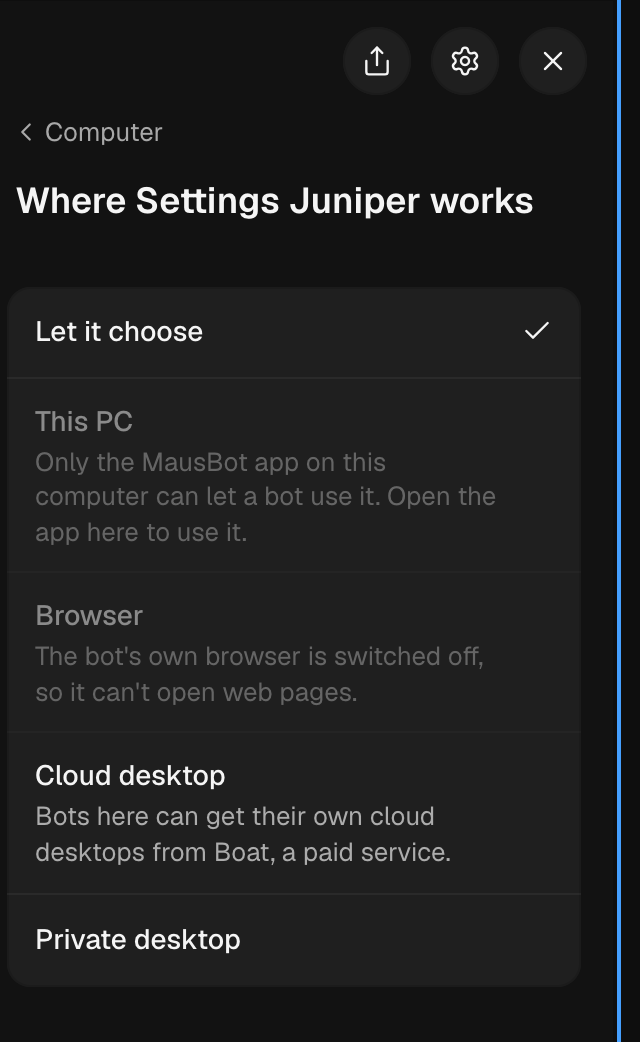
Create a bot normally, then open Bot settings → Computer → Where … works. Builds with the selector fix expose Self-hosted VPS beside Boat there. Select it, then choose the cloud desktop to provision or start its managed container. This uses your SSH alias; a Boat API key or a Seira Cloud subscription is not needed. In Let it choose (Auto), the per-bot Start VPS automatically switch permits creating or waking that container; leave it off to reuse only an already-ready VPS.
Existing bots in 0.1.151 and 0.1.152
The Simple layout can hide this selector and show Connect Boat first even when your SSH alias works. A connected alias alone does not change the bot’s backend. The selector regression is tracked in upstream issue #5225, with the UI fix in upstream pull request #5228. If your installed build still lacks the selector, use the stopped-app workaround below. The older Bot Settings → Access → Server (SSH alias) directions do not apply to that layout.
Workaround when the selector is missing
-
Fully quit the desktop app, including its background process, or stop the headless Seira service. Closing a window alone may leave it running. Do this on the computer hosting Seira, not on a paired phone or desktop client.
-
Back up
config.jsonandbots.jsonin that host’s application data directory (normally~/.openmausbot; a custom data directory takes precedence). -
If the default alias was not saved through App Settings, merge this fragment into
config.json, preserving every other setting:{ "vps": { "sshAlias": "my-vps" } } -
In the existing bot’s object inside the
bots.jsonarray, set these fields. This is a fragment, not a replacement for the file or the bot’s other fields:{ "computer": "cloud", "cloudBackend": "vps", "vpsAlias": "my-vps", "autoStartVps": false } -
Save valid JSON, restart Seira, and open that bot’s Screen panel. Provision the container if requested. If it fails, follow the connection checks below.
Keep the application stopped while editing so a running process cannot overwrite your changes. Restart afterward to reload the bot record and apply the saved configuration.
| Bot field | Meaning |
|---|---|
computer: "cloud" | Explicitly use the selected cloud computer; it may provision/start the container. |
cloudBackend: "vps" | Use your SSH/Docker server instead of Boat. An absent backend defaults to Boat. |
vpsAlias | Override the default SSH alias for this bot. Omit it to use App Settings’ alias. |
autoStartVps | Permit Auto to create/wake this bot’s managed container. Defaults to false; it is not needed for an explicit cloud selection. |
To use Auto, leave the bot’s computer field unset rather than storing the
string "auto". Set autoStartVps to true only if you want Auto to create or
wake its container. Scheduled and manually triggered routine runs may start the
configured VPS even when this Auto permission is off.
Check the result
- Run
ssh my-vps trueanddocker -H ssh://my-vps infofrom the host running Seira. A prompt or permission error must be fixed before the app can connect. - First provisioning builds the pinned desktop image on the VPS and may take several minutes. Read the Screen panel’s status for the exact failing step.
- The container publishes no public ports and has no host mounts. Take control uses a temporary SSH tunnel to a loopback port on the Seira host.
- Sleeping the container preserves its filesystem; removing or replacing it does not. Copy important results out before removal or an image upgrade. The VPS itself is never stopped by Seira.
For per-bot server changes, container cleanup and concurrent desktop ownership, see the full BYO VPS reference. For a container on the same host instead, see Local VM.